

Integration Best Practices
Best practices to follow when integrating your e-commerce site with Zip!
Widgets
Zip Widget
The Zip Widget displays installment messaging at the point of price consideration — before customers ever reach checkout. Showing it early builds intent and familiarity with Zip as a payment option.
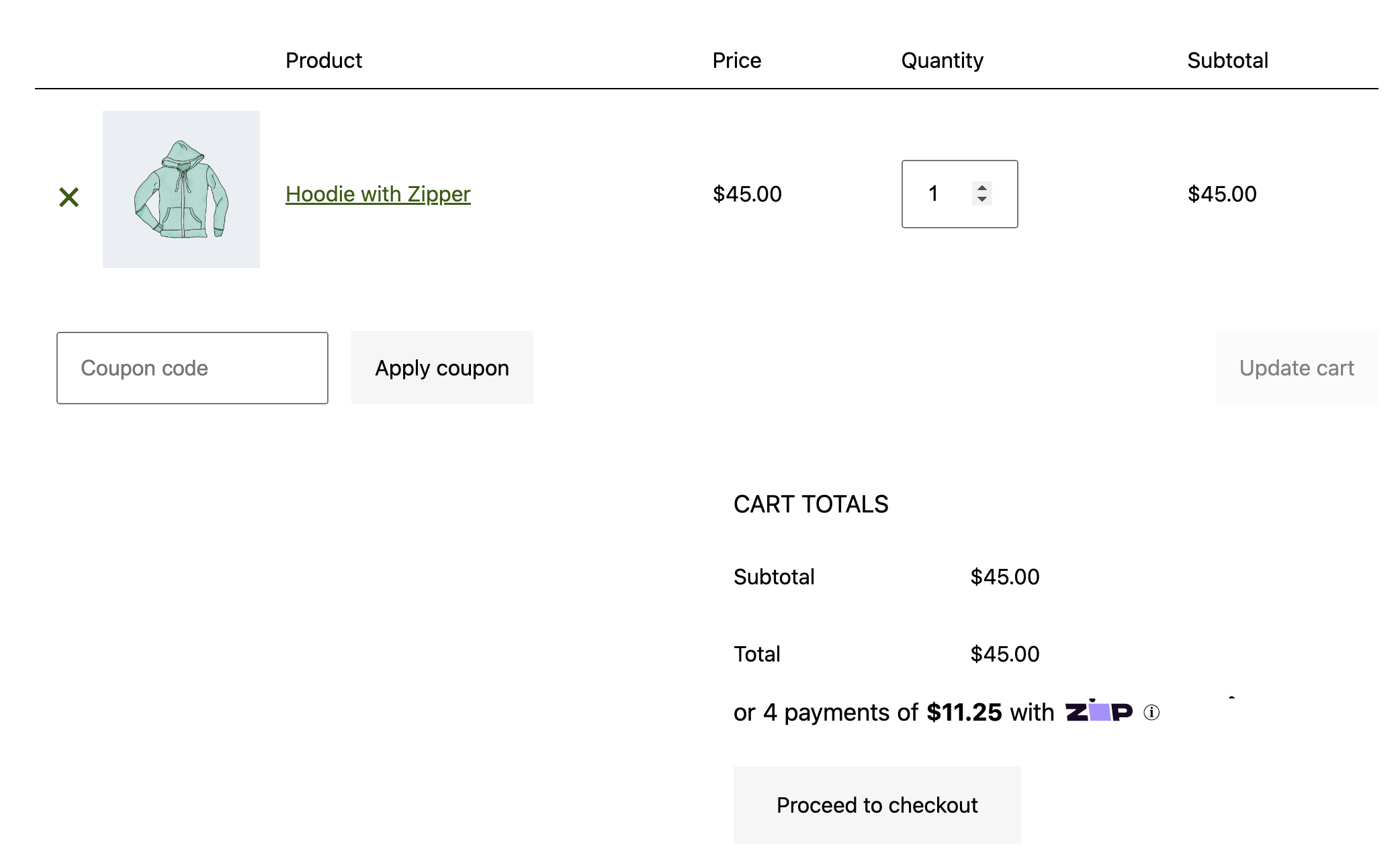
Place the Zip Widget directly below the price on all three of these pages:
- Product detail page (PDP)
- Mini-cart (if applicable)
- Cart page
PDP Example

Cart Page Example
Payment Widget
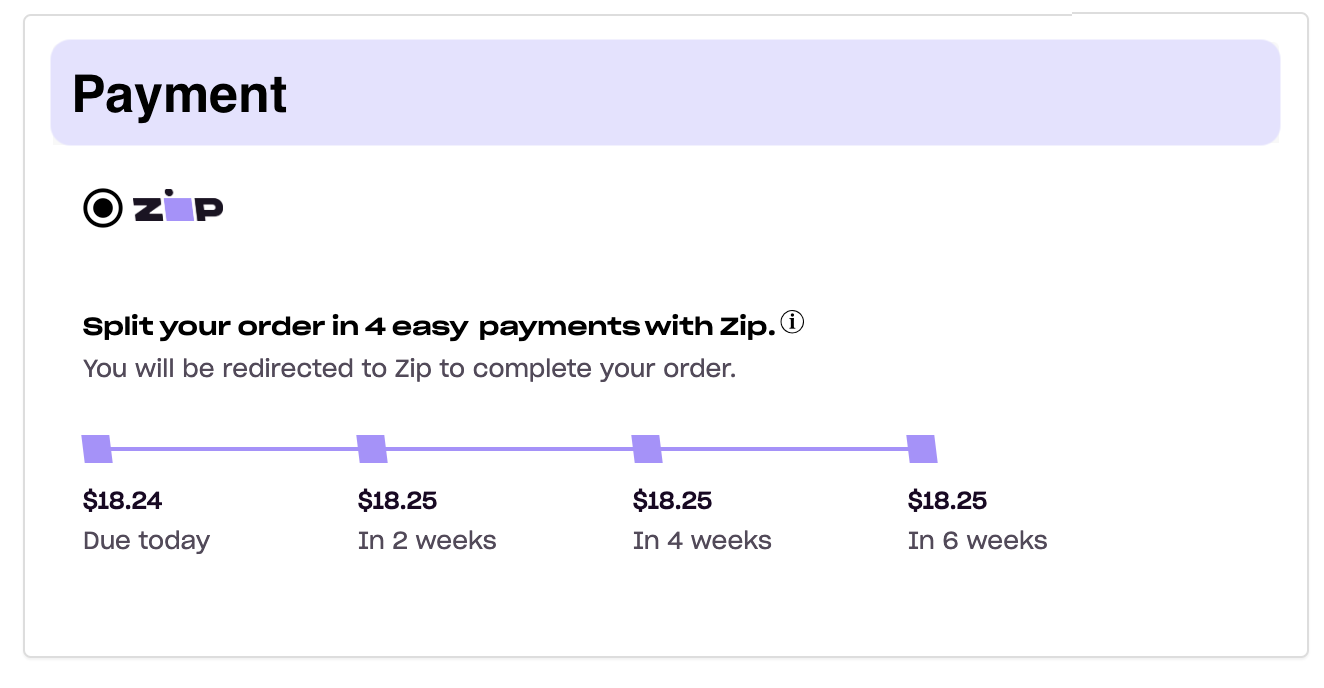
The Payment Widget reinforces Zip at the moment of payment selection. Customers who see the installment breakdown next to the Zip button are more likely to choose it.
Place the Payment Widget on your checkout page, near the Zip checkout button.
Please be sure to include the following attributes:
merchantId="[insert your Merchant ID]"
Example
Second Chance Widget
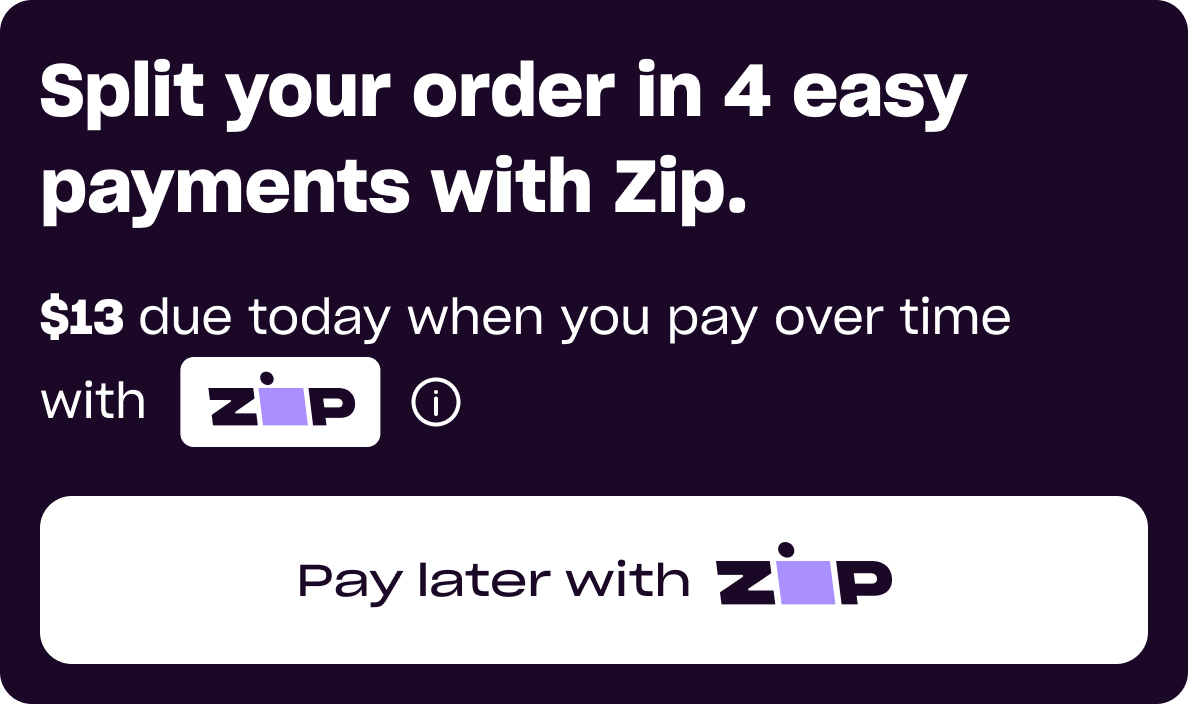
The Second Chance Widget helps recover sales that would otherwise be lost to payment declines. When a customer's card is declined, the widget surfaces on the page and offers them the option to apply to Zip and if approved, complete their purchase — no need to start over.
Place the Second Chance Widget anywhere your checkout displays a payment failure state.
Already integrated with Virtual Card Checkout or the API JavaScript SDK?You can reuse that existing implementation for the Second Chance Widget — no major additional work required.
Example
Virtual Card Checkout
Express Checkout
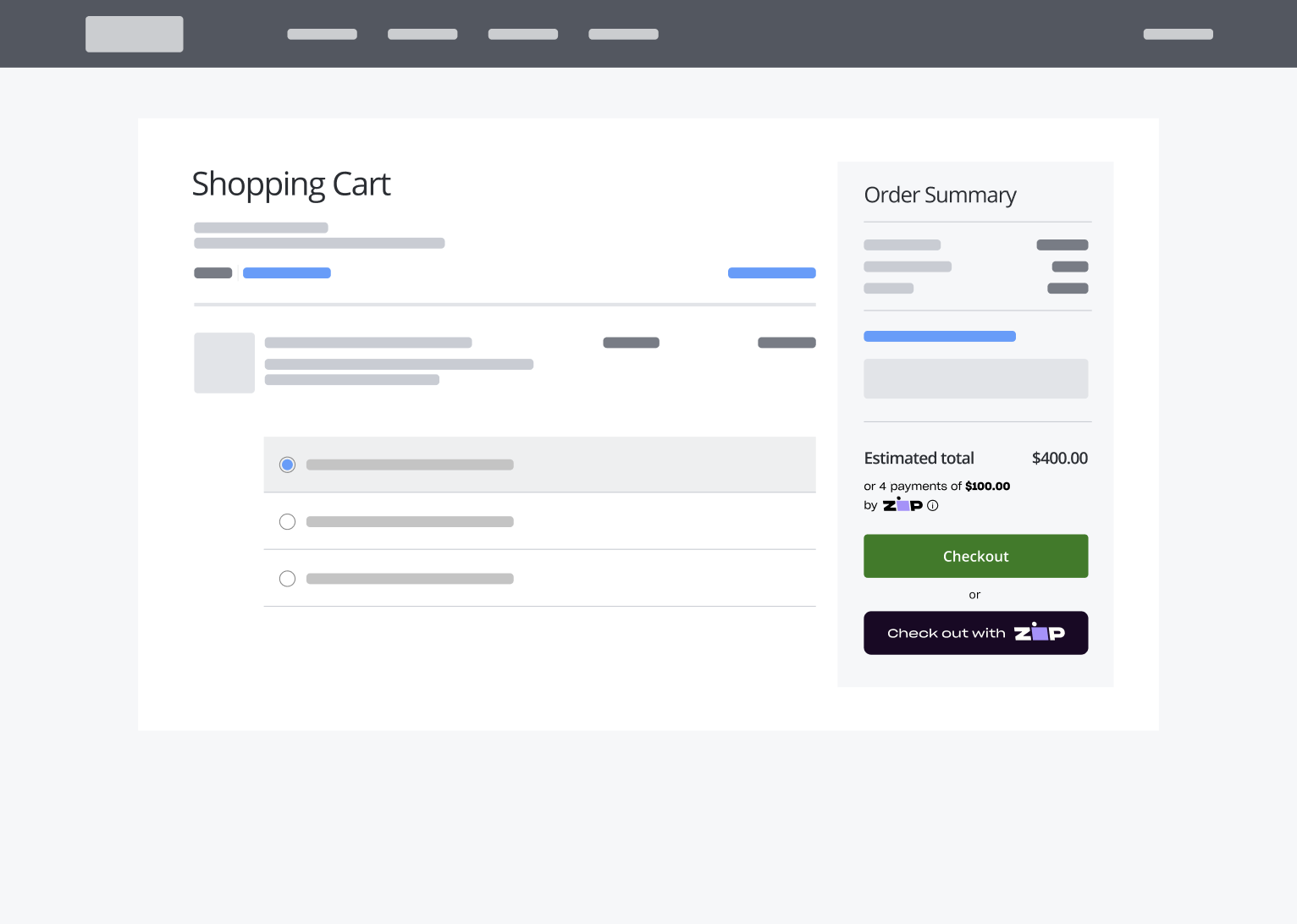
Express Checkout lets customers pay with Zip directly from the cart or product page — before they ever reach your payment step. Zip collects shipping and address information inside its own flow and passes it back to you, so customers skip those form fields on your side entirely. Fewer steps means less abandonment. Customers should be redirected back to a confirmation page to confirm their shipping method and submit their final order with the updated total.
Add Express Checkout to your cart page and/or PDP.
PDP placementOnly add Express Checkout to your PDP if customers typically buy one item at a time. Since the order is placed directly from the product page, multi-item carts won't be captured.
Express Button Example — Cart Page
Express Button Example — Product Detail Page

Auto-Submit (Standard Checkout)
When using standard Virtual Card Checkout (not Express), best practice is to auto-submit the order immediately after the customer completes the Zip flow — rather than redirecting them back to your checkout page to click a submit button.
By the time onComplete fires, the customer has already approved the purchase inside Zip. Sending them back to click "Place order" again creates an unnecessary drop-off point.
Set returnToMerchant: false in your checkout config and trigger your form submission programmatically inside the onComplete callback. The order is placed the moment Zip returns the virtual card details — no redirect, no extra click required.
const checkoutConfig = {
  returnToMerchant: false,
};

window.quadpay.virtualCheckout.onComplete(function(result) {
  // Populate card details
  document.getElementById("creditCardNumber").value = result.card.number;
  document.getElementById("creditCardCvc").value = result.card.cvc;
  document.getElementById("creditCardExpiryMm").value = result.card.expirationMonth;
  document.getElementById("creditCardExpiryyy").value = result.card.expirationYear;
  document.getElementById("cardholderName").value = result.cardholder.name;

  // Populate billing address
  document.getElementById("addressLine1").value = result.cardholder.address1;
  document.getElementById("city").value = result.cardholder.city;
  document.getElementById("state").value = result.cardholder.state;
  document.getElementById("zipCode").value = result.cardholder.postalCode;

  // Auto-submit — no additional customer action required
  document.getElementById("orderForm").submit();
});
NoteThis applies to standard checkout only. Express Checkout handles order completion through the Multi-Page Checkout Handler — see the Express Checkout docs for details.
Zip Button Sizing
The Zip checkout button is already familiar to Zip customers. Don't let styling choices obscure it.
✅ Size the button so the text fits on a single line, at a width similar to your other payment method buttons.
Correct sizing:

❌ Don't make the button so narrow the label wraps to two lines:

❌ Don't make the button so wide it loses its button shape:

API Integration
Pass as much customer data as possible
Beyond the required fields listed in our API Reference, send the full customer and order context. Pre-filling customer information in the Zip checkout reduces friction and improves the approval experience.
Customer information —order object
"order": {
          "firstName": "First",
          "lastName": "Last",
          "email": "[email protected]",
          "phone": "5555555555",
          "shippingAddress": {
              "line1": "123 St",
              "line2": "",
              "city": "New York",
              "state": "NY",
              "postalCode": "11111",
              "country": "US"
           },

          "billingAddress": {
              "line1": "456 St",
              "line2": "",
              "city": "New York",
              "state": "NY",
              "postalCode": "11111",
              "country": "US"
           },
Order line item information —lineItems object
"lineItems": [
               {
                    "description": "item description",
                    "isPreOrder": false,
                    "sku": "12345",
                    "quantity": 1,
                    "price": 100,
                    "name": "item"
               }
Updated about 17 hours ago